
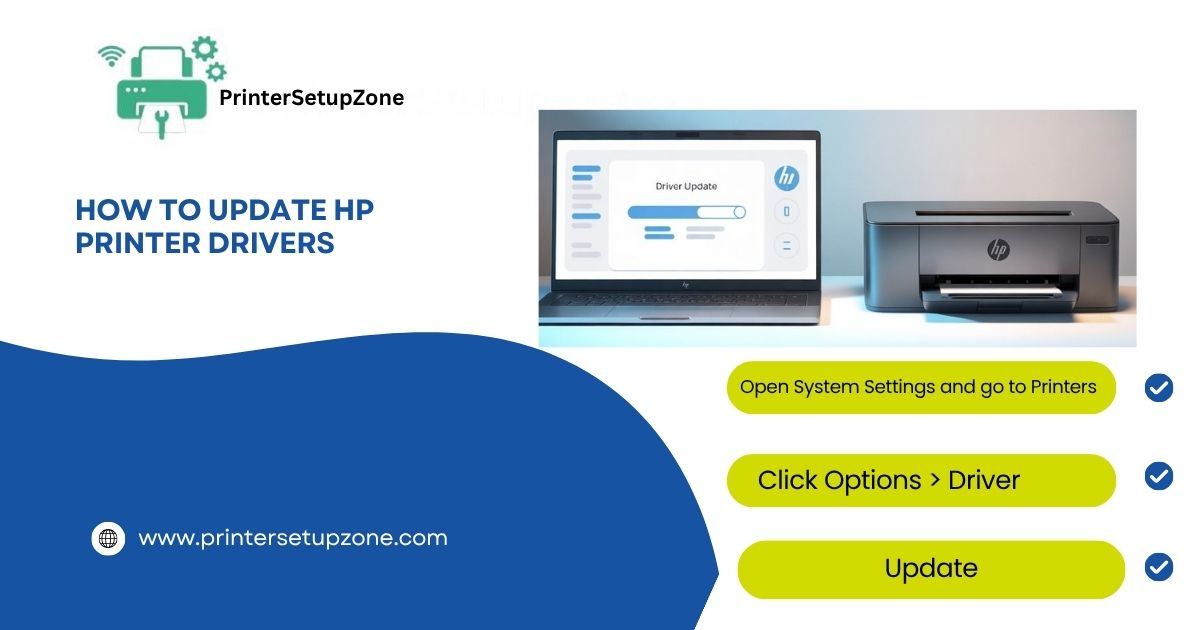
Update HP printer drivers frequently to provide maximum functionality and to minimize compatibility challenges. HP printer drivers update frequently to provide maximum functionality and to minimize compatibility challenges. It is essential to have regular updates on the driver for the HP printer, ensuring the smooth running of the printer with the computer. The ability to undertake the updating process of the printer driver for the HP printer will help to remove most of the problems arising during the printing process, ensuring the printer’s general usability. Below are the processes required to ensure the printer driver for the HP printer is updated on the Windows computer and the Mac computer.
Why You Should Update HP Printer Drivers
It is always advisable to update your printer drivers for the best experience. Using outdated drivers can often cause problems while printing. Let us see some of the reasons why you should update HP printer drivers:
* Updating your HP printer drivers improves the overall performance of your printer.
* It helps install the latest features and functionalities for your device.
* If there are any bugs in your system, updating the driver can easily resolve them.
* Using the latest features also helps you address security issues in your devices.
How to Update HP Printer Driver on Windows
Mainly, there are two ways to update HP printer drivers on Windows. Just follow these two methods, and you can easily update your HP printer drivers on Windows. Let’s look at them below:
- Using Device Manager:
- First, right-click the Start button to open the Device Manager.
- Then select Printers from the list of devices.
- Right-click your HP Printer name in the Printers section and choose Update Driver.
- Select “Search Automatically for Updated Driver Software.”
- Windows will search, download, and automatically install any available updates from the Internet.
- A computer restart may be necessary for the drivers to install completely.
- Using Windows Update:
- Go to the Start Menu > Settings > Update and Security.
- Click on Check for Updates to locate new driver updates.
- Select the HP driver you want to update from the available options.
- Press Install to have your system automatically complete the download and installation.
- It is recommended to reboot your computer after completion to ensure everything functions correctly.
How to Update HP Printer Driver on Mac
Now let’s see how to update HP printer drivers on Mac. There is a simple process for doing so. We will discuss two methods to accomplish this.
Using the Manufacturer’s Support Website:
- Download the latest drivers from the manufacturer’s support website.
- Enter your HP printer model number and select your macOS version.
- Download the driver package appropriate for your Mac operating system.
- Once downloaded, double-click the installer file to begin the update process.
- Follow the on-screen prompts and accept the license agreement.
- The installer will complete the HP printer driver update automatically.
- Restart your Mac when the installation finishes.
Using System Preferences
- Open System Preferences and navigate to Printers & Scanners.
- Select your HP printer from the list of available printers.
- Click Options & Supplies to access additional settings.
- Look for driver update options in this menu.
- If updates are available, select and install them automatically.
- Complete the HP driver update and restart your Mac for optimal performance.
Using HP’s Official Website to Update Printer Drivers HP
The most reliable way to identify what drivers need to have an HP printer updated is to go to the support website of the printer’s manufacturer, HP. Look at the Download section on the website. This is how to access the Download section. Type in the specific printer model number into the search box on that page. Choose what operating system—MS Windows & Mac—operates on your computer. Get and download the latest version of drivers for your HP printer that were specifically developed for your printer machine.Always install the driver by carefully reading all the instructions and providing your consent to the license agreement for the HP printer driver.
Benefits of Regular HP Printer Drivers Update
There are many benefits of Regular HP printer driver updates; let’s see them one by one
- It improves printing speed and efficiency significantly.
- Allows the printer to handle complex documents better.
- It prevents paper jams and hardware errors.
- Ensures improved compatibility with new software.
- Results in better print quality.
- Provides enhanced security protections.
Troubleshooting HP Driver Update Issues
There are cases where you experience problems during the process of updating your HP printer driver and require a correct remedy to solve this issue. If it failed during updating, you should turn off both the computer and the printer and switch them on again. The third remedy is to switch off your antivirus protection if it hinders the HP printer driver update. After removing a former driver, you should install a new one. When you download HP printer drivers from HP manufacturer sites, it is crucial to ensure stability in internet connectivity. If problems persist while updating HP printer drivers, you should contact HP customer service personnel.
Conclusion
Knowing how to update an HP printer driver allows your device to work correctly. Proper maintenance is vital for both a Mac and a Windows-based PC and is not limited to the update of HP printer drivers; hence, it is important to regularly maintain these drivers through updating them as needed.
FAQs (Frequently Asked Questions)
Connect your printer, then go to System Preferences > Printers & Scanners, click the “+” button, and macOS may automatically find the driver. Or download from HP’s website directly.
Go to the HP printer website, enter your printer model, choose your operating system, and download the recommended driver package.
Yes, you can install the printer driver on multiple computers or devices, as long as each has a compatible operating system and the driver is correctly installed.
Yes, Windows may install a basic driver automatically when you connect the printer, but you may still need to manually install the full-feature driver for complete functionality.
To update your HP printer driver, go to the official HP Support website, enter your printer model, and download the latest driver compatible with your system. You can also update drivers using Windows Device Manager or the HP Smart app for a quicker, automated installation process.